After completing this lesson, you'll be able to:
In this lesson, you will:
After completing this lesson, you'll be able to:
In this lesson, you will:
If you're taking a live Safe Software-hosted training course or using an on-demand lab for this course, we've already imported the content for this lesson into your FME Flow.
If you're completing this lesson with your own FME Flow, you must import the starting project with the content into your FME Flow.
See FME Flow Authoring: Instructions to Import the Starting Project for directions to import the project to your own FME Flow.
FME Flow security and permissions work together to restrict and allow access to FME Flow items. It's essential to ensure users have access to the items they're supposed to, and oftentimes, only the admin account has access to all items on an FME Flow instance.
You have full permissions when you create an item; however, that does not mean your colleague can access it when needed. Depending on the permissions set up for each user to access FME Flow items, the easiest way for FME Flow users to collaborate and access the same content is by sharing it across users and roles.
Generally, sharing content on FME Flow follows one of these methods:
On FME Flow, you share workspaces at the repository level to ensure you share not only the workspace but also any other relevant items. Repositories act like folders to keep and organize workspaces and their related data. Each workspace must belong to a repository on FME Flow.
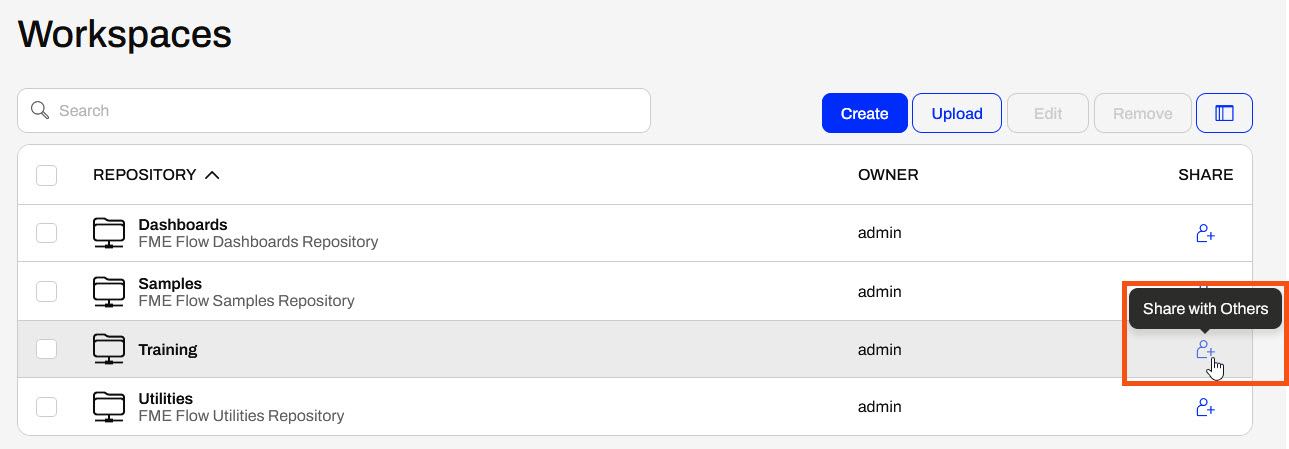
When you access the Workspaces tab on FME Flow, you'll see a list of repositories. Under the Share column, there's a Share with Others option which opens the Sharing Options window.
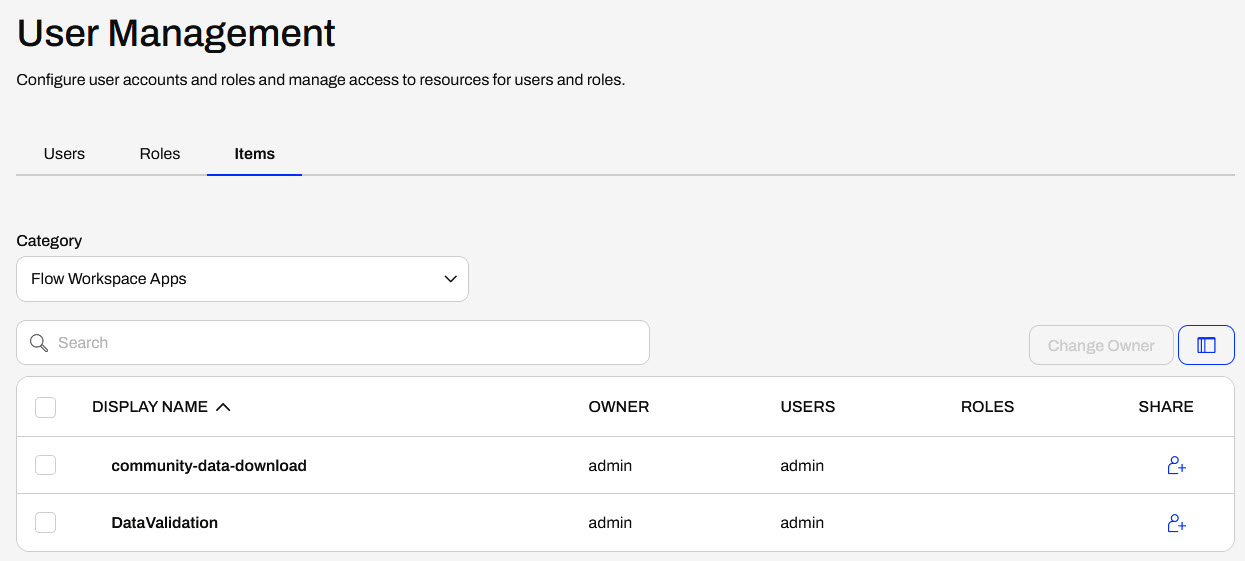
Sharing Options allows you to select users and roles to share the repository and all its workspaces with. You may also limit the access permissions for the users and roles you're sharing it with. Permissions range from full access, where users have the same permissions as the item's owner, to only running the workspace. The Can Download permission allows users to download and open the workspace in FME Workbench for editing, but they cannot delete the repository or workspaces.
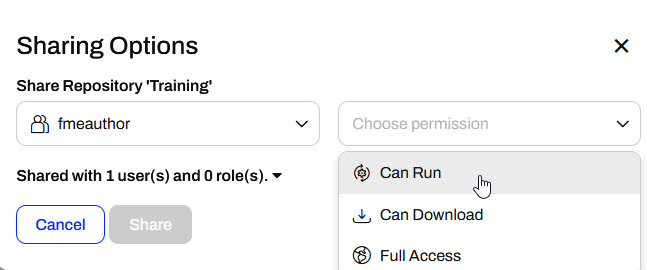
Users and roles also impact FME Flow security. Roles are analogous to a group of users. You may create workspaces for multiple users on FME Flow; however, they must have access to use the workspace. The Sharing Options dialog allows you to give others access to your workspace without needing the advanced User Management permissions.
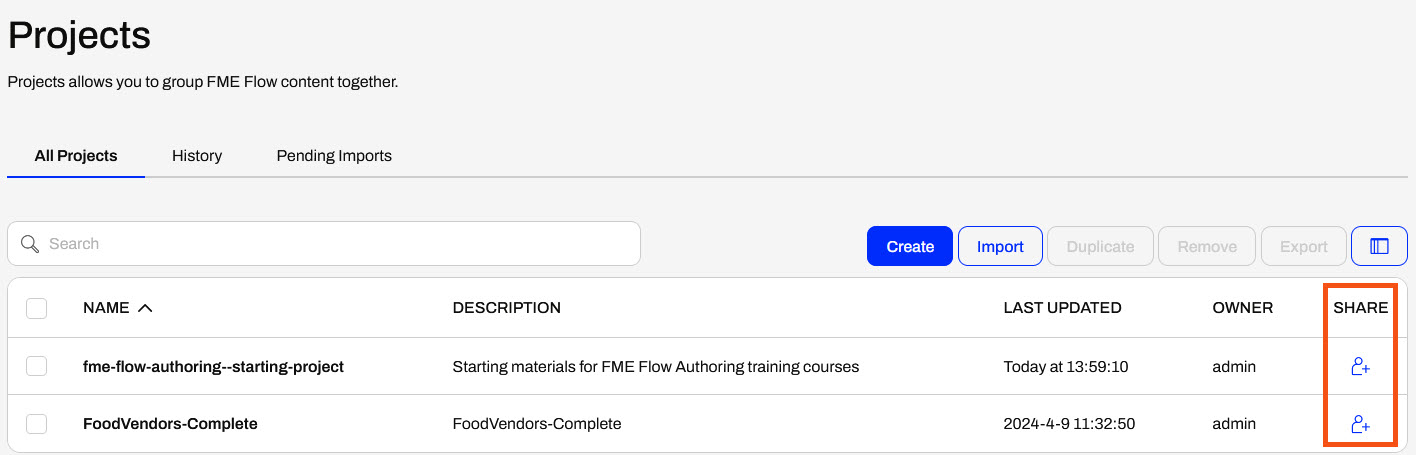
You can share other items on FME Flow the same way you share repositories. The difference is the options for the level of permissions that you may grant to the user or role you're sharing with. For example, you can share Projects, which group FME Flow content together. The permissions options include the ability to view and edit the project, unlike those for repositories. You will learn more about Projects in the following lessons of this course.
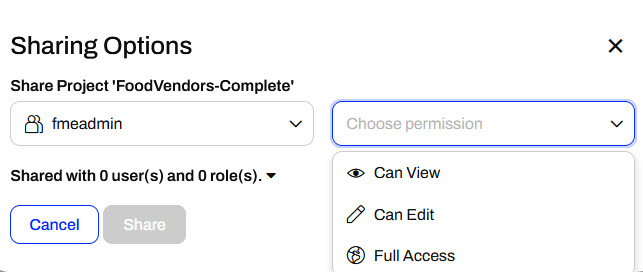
Likewise, when you share a Resource folder, you can only allow users to view the content or assign them full access.
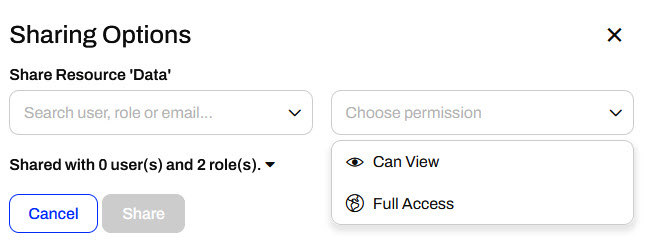
If you have administrator permissions, you may also manage access to items directly in User Management through Users, Roles, or Items. Permissions for users and roles work the same. You may grant permissions to all features and functions of FME Flow, or on an item basis. Some features have different permission levels, including Access, Create, and Manage, and you may also assign permissions on an item basis.
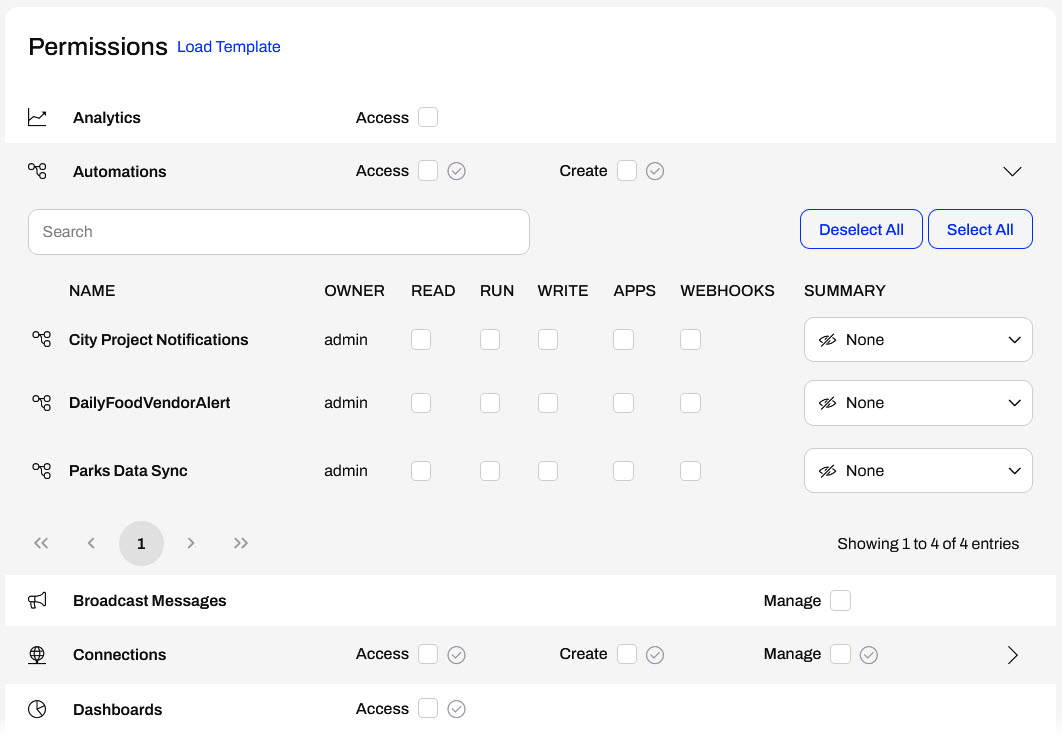
The Items page provides the same Sharing Options as when sharing items directly from the item's manage page. For items, you select the content category on FME Flow, then grant permissions by sharing items with users or roles.

Frank, a GIS and FME Flow administrator, has a CAD data validation workspace on FME Flow for his city's Engineering and GIS departments. The workspace validates water line data and is running successfully as expected. Frank needs to share it with his colleagues so they can access and use the workspace on FME Flow.
For this exercise, follow these steps to help Frank share his workspace on FME Flow with his colleagues.
The first two steps of this exercise require User Management permissions, usually granted by the fmeadmin and fmesuperuser roles. If you are using an FME Flow account that does not have User Management permissions, like an fmeauthor, you won't have access to User Management to create a role and enable the author user. Instead, you may share a repository with another active user or role.
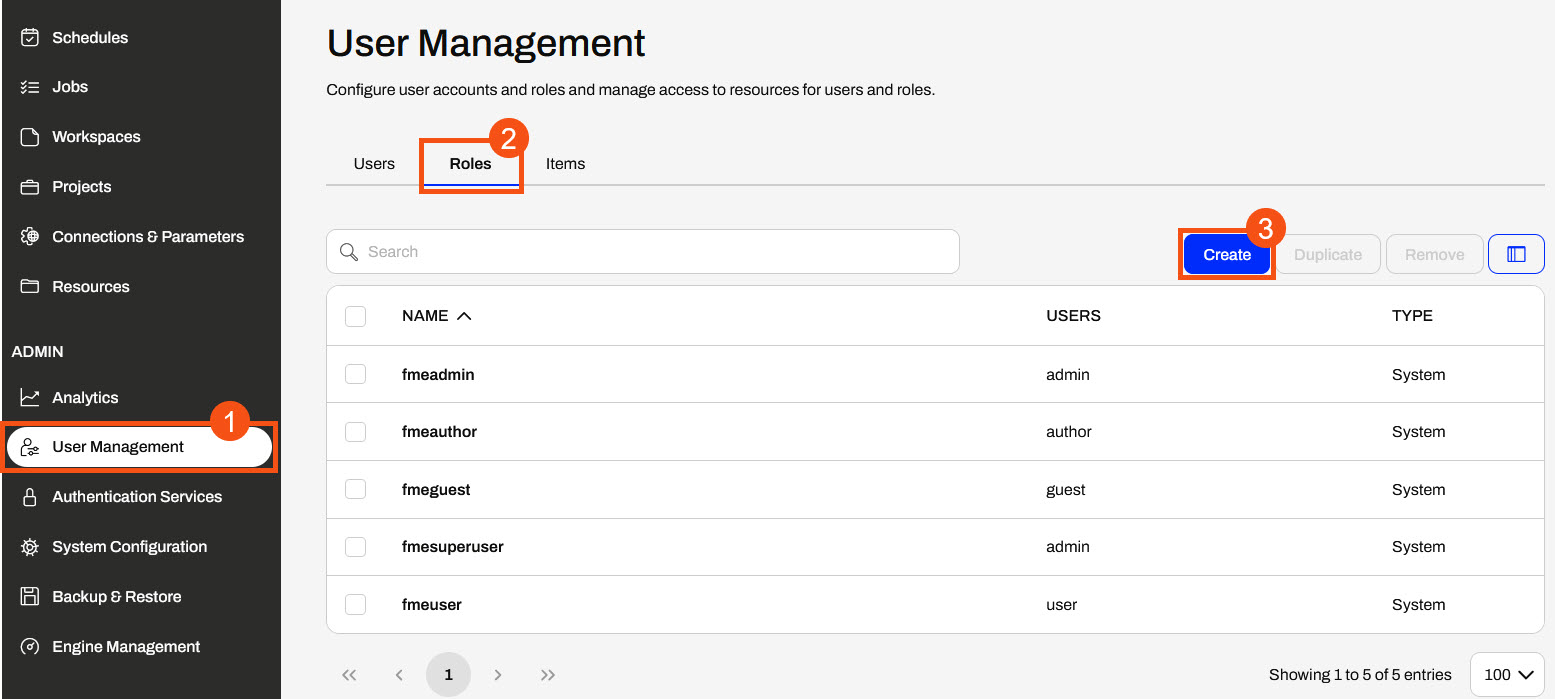
In the Admin section of the FME Flow side menu, open User Management and go to Roles. Click Create to make a new role.
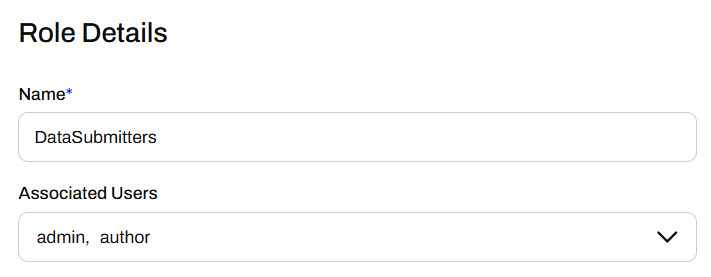
Name the group DataSubmitters and assign the admin and author users to the role.
Click Load Template for Permissions and then select the fmeauthor to copy permissions.
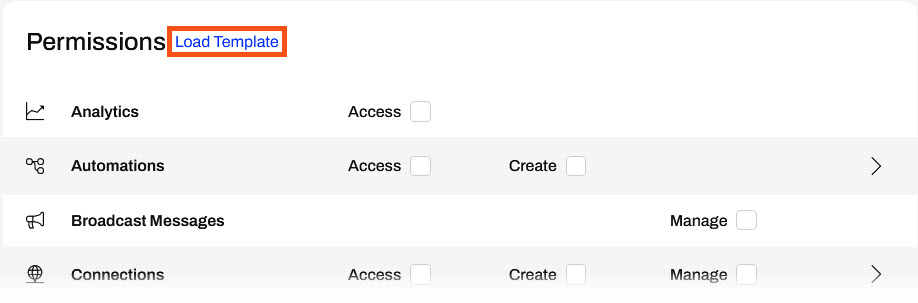
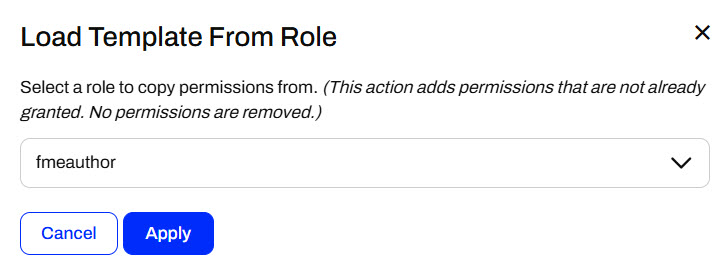
By using this role as a template, you won't remove any permissions from users, like admin, who have more permissions than the fmeauthor role. It grants permissions only to users who do not already have the same permissions as the fmeauthor role.
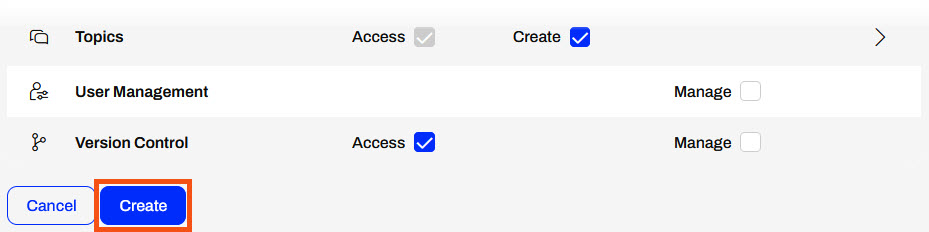
Scroll down and click Create to finish creating the new role.
Next, test the sharing permissions using the default author user on FME Flow. Navigate to the Users tab in User Management. You will see that the admin and the author users are assigned the new DataSubmitters role; however, the author user is disabled.
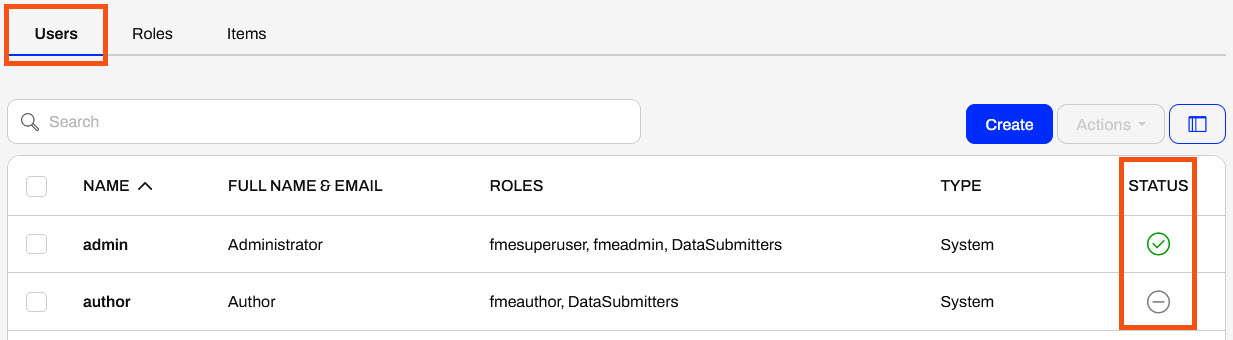
Click the author to open the user settings, then toggle the Account Enabled button on.
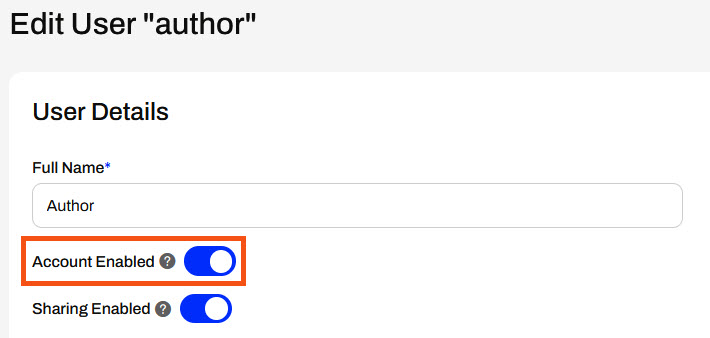
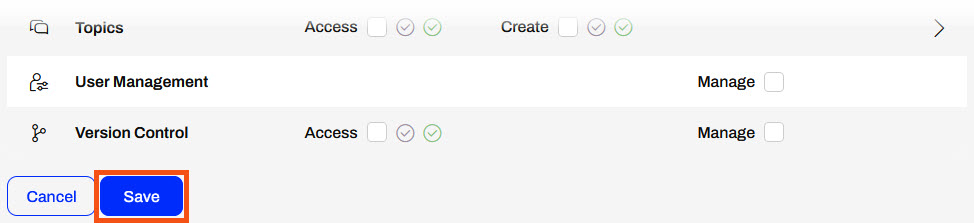
You don't need to alter any other settings. By default, the author user's password is also "author," which you will use to log in as the author user. Scroll to the bottom of the page and click Save.
Now that you have created the DataSubmitters role, you can share the repository housing the workspace with the role. When Frank adds new users to the role, they will gain the permission to access the repository, so Frank won't need to repeat the sharing process.
Open Workspaces from the side menu to view the list of repositories on FME Flow.
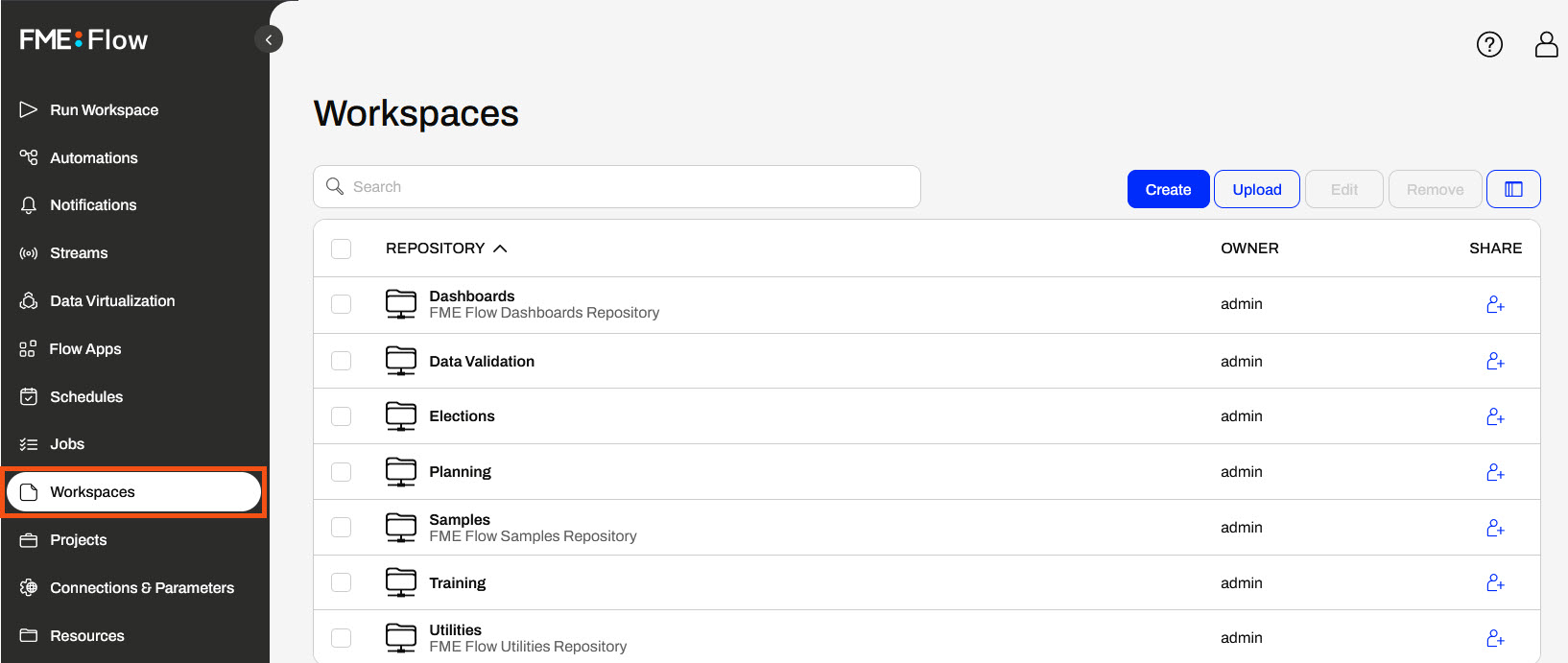
For the Data Validation repository, click the Share icon.

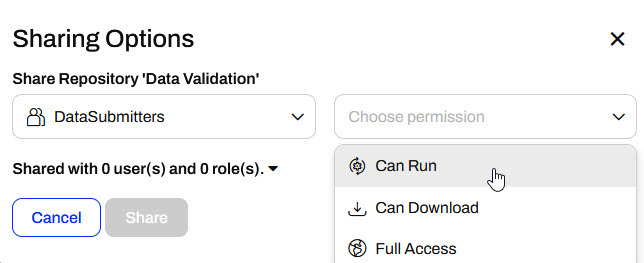
Select the DataSubmitters role you just created, then grant the Can Run permission to the role, which allows users in that role to access and run the workspace, but they won't be able to alter any settings or download it.
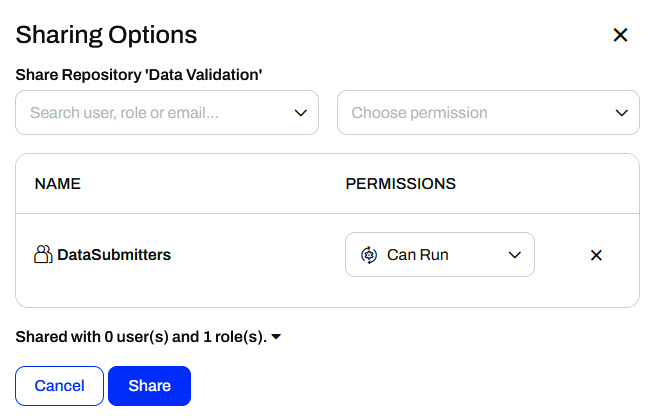
Click Share.
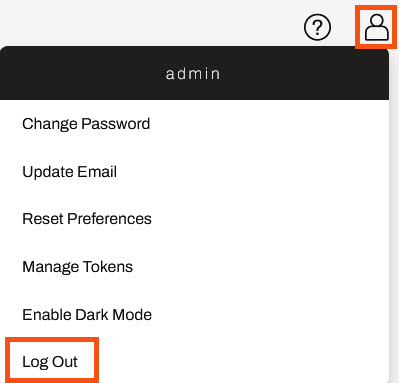
Open User Settings in the top-right corner, then log out as the admin user.
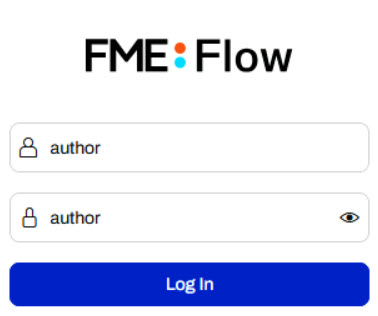
Now, log in to FME Flow as the author user.
Open Workspaces and select the Data Validation repository that you shared with the DataSubmitters role.
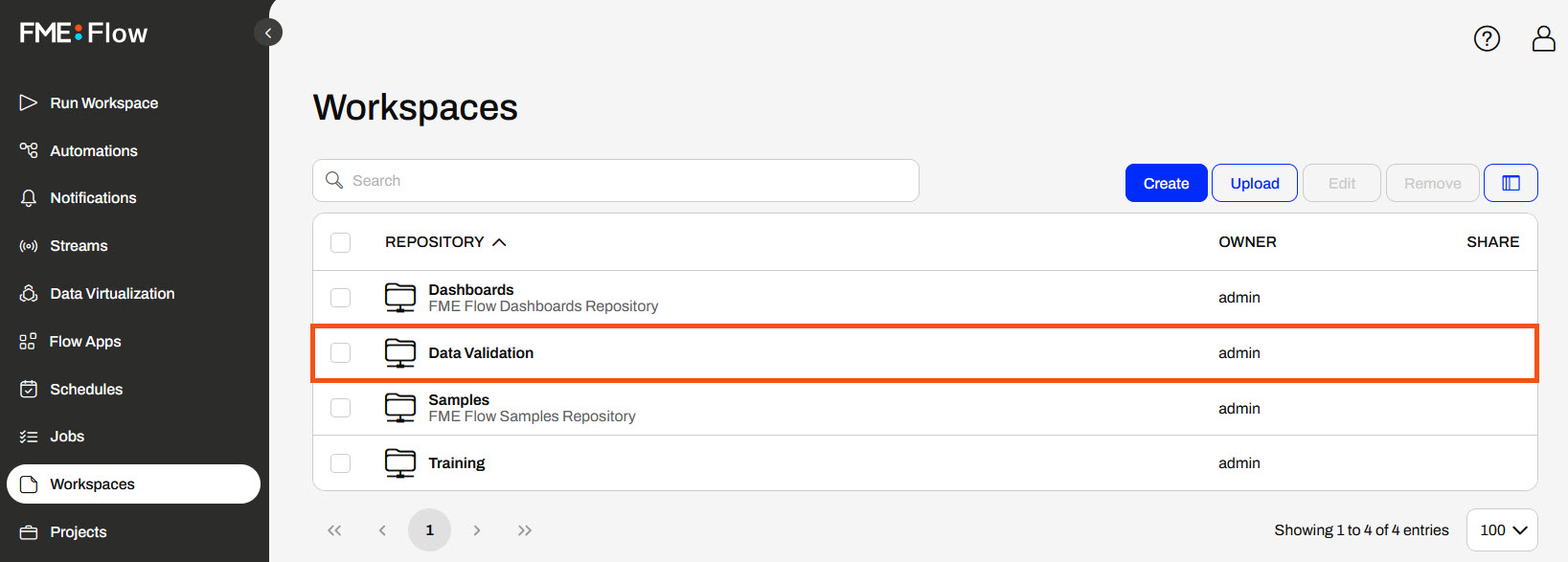
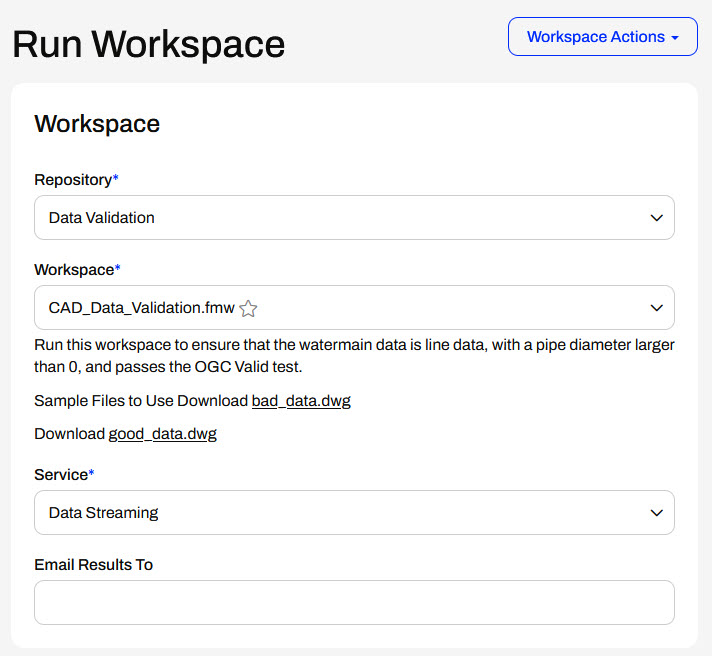
Next, click on the CAD_Data_Validation.fmw workspace to open it in Run Workspace.

Run the workspace with the Data Streaming service, leaving all parameters as their default values.
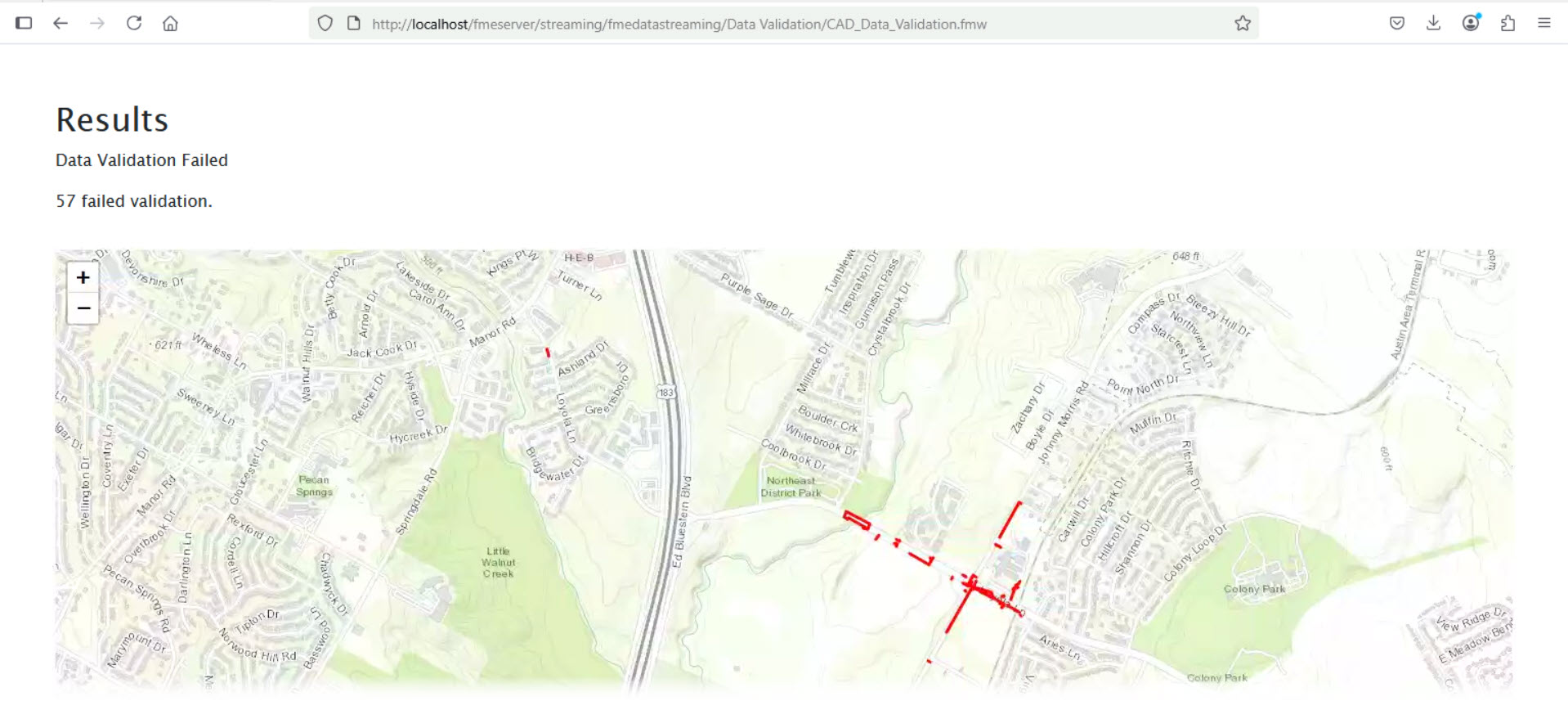
FME Flow returns the HTML report of the CAD validation results to you in the web browser.
You have successfully shared a workspace with a role to run it on FME Flow. You accomplished this by creating a role to group the users and then sharing the workspace's repository with them. Now, Frank's colleagues in the DataSubmitters role can run the workspace and access FME functionality.
If you're taking a live Safe Software-hosted training course or using an on-demand lab for this course, we've already imported the content for this lesson into your FME Flow.
If you're completing this lesson with your own FME Flow, you must import the starting project with the content into your FME Flow.
See FME Flow Authoring: Instructions to Import the Starting Project for directions to import the project to your own FME Flow.
FME Flow security and permissions work together to restrict and allow access to FME Flow items. It's essential to ensure users have access to the items they're supposed to, and oftentimes, only the admin account has access to all items on an FME Flow instance.
You have full permissions when you create an item; however, that does not mean your colleague can access it when needed. Depending on the permissions set up for each user to access FME Flow items, the easiest way for FME Flow users to collaborate and access the same content is by sharing it across users and roles.
Generally, sharing content on FME Flow follows one of these methods:
On FME Flow, you share workspaces at the repository level to ensure you share not only the workspace but also any other relevant items. Repositories act like folders to keep and organize workspaces and their related data. Each workspace must belong to a repository on FME Flow.
When you access the Workspaces tab on FME Flow, you'll see a list of repositories. Under the Share column, there's a Share with Others option which opens the Sharing Options window.
Sharing Options allows you to select users and roles to share the repository and all its workspaces with. You may also limit the access permissions for the users and roles you're sharing it with. Permissions range from full access, where users have the same permissions as the item's owner, to only running the workspace. The Can Download permission allows users to download and open the workspace in FME Workbench for editing, but they cannot delete the repository or workspaces.
Users and roles also impact FME Flow security. Roles are analogous to a group of users. You may create workspaces for multiple users on FME Flow; however, they must have access to use the workspace. The Sharing Options dialog allows you to give others access to your workspace without needing the advanced User Management permissions.
You can share other items on FME Flow the same way you share repositories. The difference is the options for the level of permissions that you may grant to the user or role you're sharing with. For example, you can share Projects, which group FME Flow content together. The permissions options include the ability to view and edit the project, unlike those for repositories. You will learn more about Projects in the following lessons of this course.
Likewise, when you share a Resource folder, you can only allow users to view the content or assign them full access.
If you have administrator permissions, you may also manage access to items directly in User Management through Users, Roles, or Items. Permissions for users and roles work the same. You may grant permissions to all features and functions of FME Flow, or on an item basis. Some features have different permission levels, including Access, Create, and Manage, and you may also assign permissions on an item basis.
The Items page provides the same Sharing Options as when sharing items directly from the item's manage page. For items, you select the content category on FME Flow, then grant permissions by sharing items with users or roles.
Frank, a GIS and FME Flow administrator, has a CAD data validation workspace on FME Flow for his city's Engineering and GIS departments. The workspace validates water line data and is running successfully as expected. Frank needs to share it with his colleagues so they can access and use the workspace on FME Flow.
For this exercise, follow these steps to help Frank share his workspace on FME Flow with his colleagues.
The first two steps of this exercise require User Management permissions, usually granted by the fmeadmin and fmesuperuser roles. If you are using an FME Flow account that does not have User Management permissions, like an fmeauthor, you won't have access to User Management to create a role and enable the author user. Instead, you may share a repository with another active user or role.
In the Admin section of the FME Flow side menu, open User Management and go to Roles. Click Create to make a new role.
Name the group DataSubmitters and assign the admin and author users to the role.
Click Load Template for Permissions and then select the fmeauthor to copy permissions.
By using this role as a template, you won't remove any permissions from users, like admin, who have more permissions than the fmeauthor role. It grants permissions only to users who do not already have the same permissions as the fmeauthor role.
Scroll down and click Create to finish creating the new role.
Next, test the sharing permissions using the default author user on FME Flow. Navigate to the Users tab in User Management. You will see that the admin and the author users are assigned the new DataSubmitters role; however, the author user is disabled.
Click the author to open the user settings, then toggle the Account Enabled button on.
You don't need to alter any other settings. By default, the author user's password is also "author," which you will use to log in as the author user. Scroll to the bottom of the page and click Save.
Now that you have created the DataSubmitters role, you can share the repository housing the workspace with the role. When Frank adds new users to the role, they will gain the permission to access the repository, so Frank won't need to repeat the sharing process.
Open Workspaces from the side menu to view the list of repositories on FME Flow.
For the Data Validation repository, click the Share icon.
Select the DataSubmitters role you just created, then grant the Can Run permission to the role, which allows users in that role to access and run the workspace, but they won't be able to alter any settings or download it.
Click Share.
Open User Settings in the top-right corner, then log out as the admin user.
Now, log in to FME Flow as the author user.
Open Workspaces and select the Data Validation repository that you shared with the DataSubmitters role.
Next, click on the CAD_Data_Validation.fmw workspace to open it in Run Workspace.
Run the workspace with the Data Streaming service, leaving all parameters as their default values.
FME Flow returns the HTML report of the CAD validation results to you in the web browser.
You have successfully shared a workspace with a role to run it on FME Flow. You accomplished this by creating a role to group the users and then sharing the workspace's repository with them. Now, Frank's colleagues in the DataSubmitters role can run the workspace and access FME functionality.
